G Cloud Backup Integration with Nygma Secure Folder
In an era where smartphones contain sensitive photos, documents, and personal data, relying solely on local device protection is not enough. While secure folders keep files encrypted on the device, they don’t protect against loss, damage, or accidental deletion.
This guide explains how secure cloud backup integration between G Cloud Backup and Nygma Secure Folder combines encrypted storage with automated cloud backup, delivering dependable protection and peace of mind.
What Is the Integration?
G Cloud Backup now links directly with Nygma Cloud’s Secure Folder service, leveraging zero-knowledge encryption to safeguard your most confidential files. When you use the integration, files stored in the secure folder are encrypted on your device before upload, and only you hold the encryption keys.
This dual-layer approach ensures your data is both:
🔐 Encrypted locally before transmission
☁️ Backed up securely to the cloud
This combination makes the setup ideal for users seeking both privacy and reliable off-device backup.

Why Secure Cloud Backup Integration Matters
G Cloud Backup is a comprehensive cloud backup solution trusted by millions of users worldwide for protecting photos, videos, contacts, messages, documents, and more across Android and iOS devices.
While Nygma Secure Folder encrypts files on-device with strong cryptography, storing those files only locally exposes them to loss if the device is lost, broken, or reset. Integrating with cloud backup mitigates this risk by enabling:
-
- Off-device redundancy
- Automatic cloud-based protection
- Restoration on new or replacement devices
- Long-term data continuity
This approach aligns with best practices in modern data protection.
Step-by-Step: Using the Integration
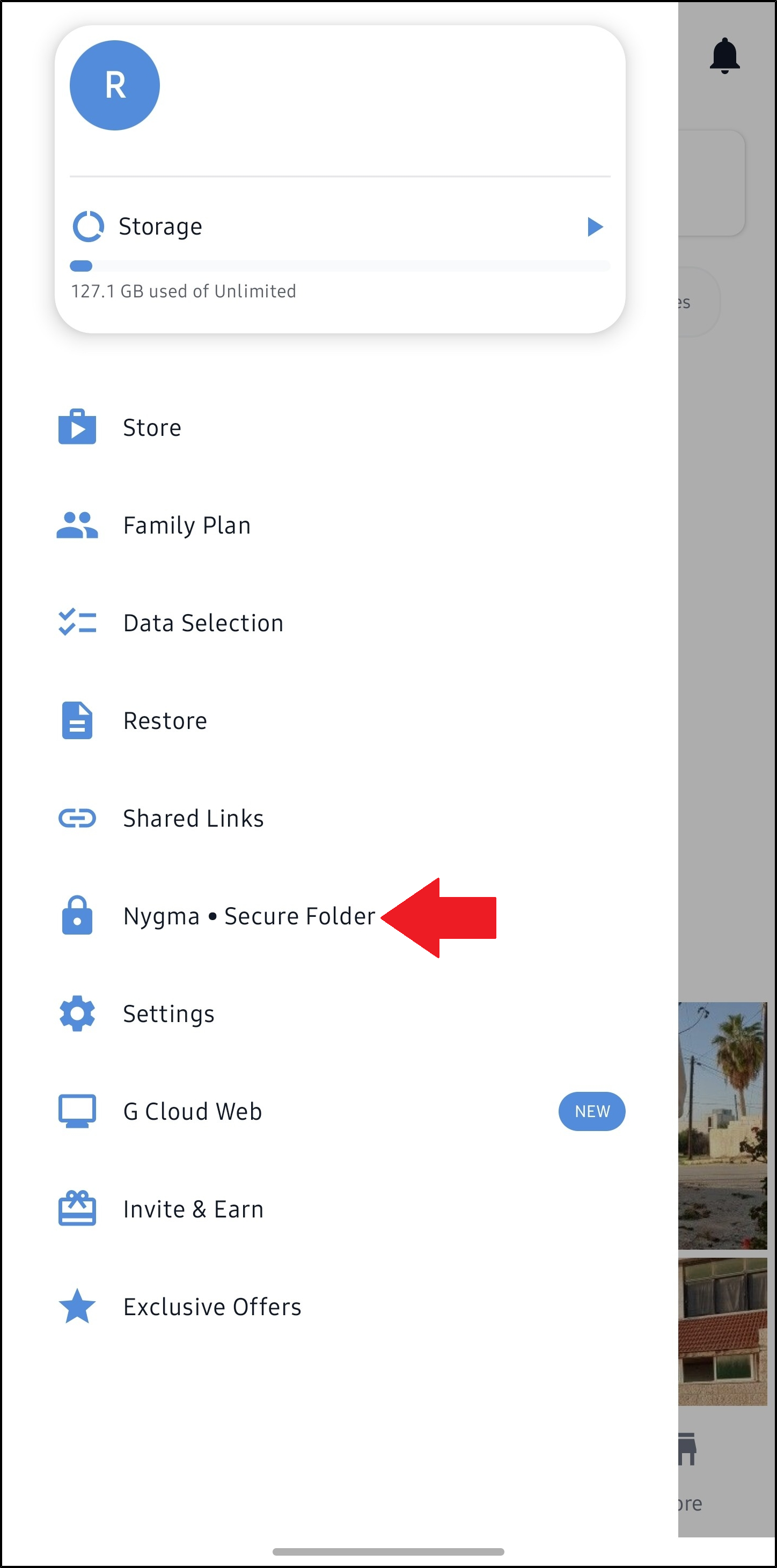
1. Open the Secure Folder in G Cloud Backup
- Ensure your G Cloud Backup app is up-to-date.
- Open the app and tap the menu (≡).
- Select Nygma – Secure Folder from the menu.
This opens a secure Nygma interface within the app.
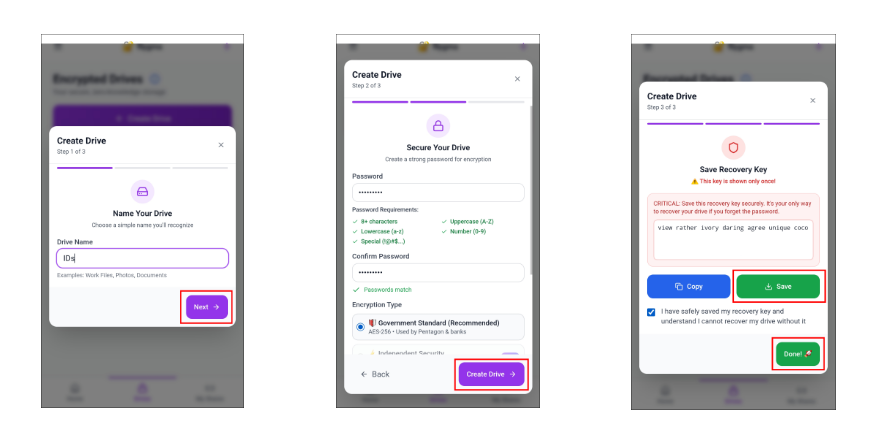
2. Create an Encrypted Drive
A drive is a secure container where files remain encrypted. To create one:
- Tap Create Drive.
- Enter a name and click Next.
- Set a strong encryption password and choose the encryption level.
- Save your recovery key (critical for future access).
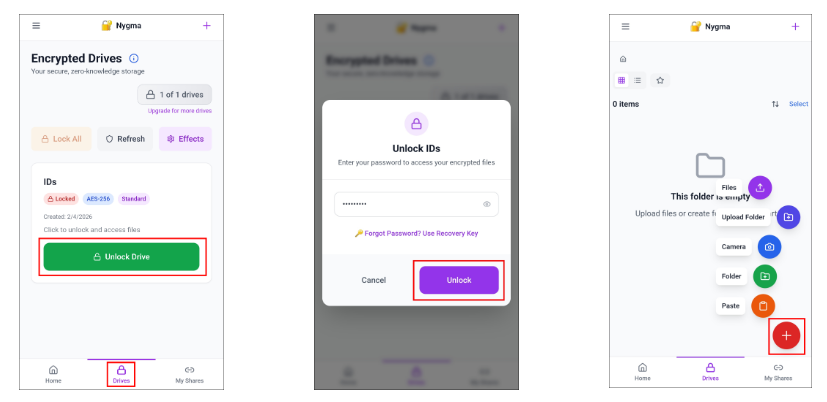
3. Add and Protect Sensitive Files
After unlocking your encrypted drive:
- Tap Add (+).
- Select files or folders for upload.
- Wait for the encrypted transfer to complete.
Files are encrypted on your device before leaving it, and remain secure in the cloud.
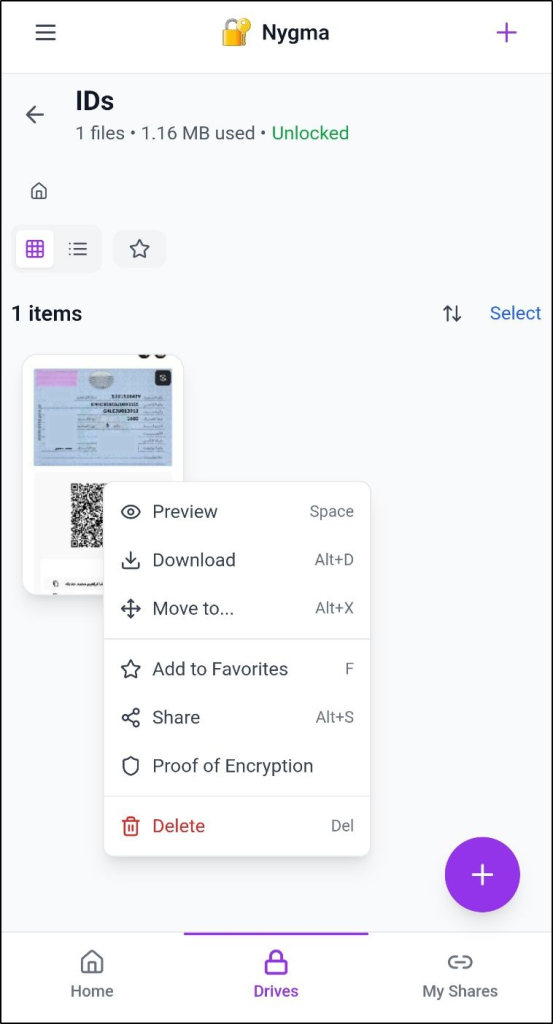
4. Manage and Share Secure Files
Within an encrypted drive, you can:
📌 Preview files (temporarily decrypted in memory)
📌 Download decrypted copies
📌 Move files between drives
📌Mark favorites
📌 Securely share files with optional access limits
These actions retain strong encryption and control.
Security and Encryption Standards
G Cloud Backup encrypts data during transfer and at rest, using modern encryption standards to protect user files from unauthorized access. (Learn more)
Nygma Secure Folder uses a zero-knowledge encryption model, meaning encryption keys are never shared with the provider. Only you can decrypt your files, offering privacy assurance that even the service cannot bypass.
Benefits of This Integration
🔹Comprehensive protection: Local encryption plus cloud backup.
🔹Continuous backup: Set automatic schedules via G Cloud Backup.
🔹Device-agnostic access: Retrieve files on Android, iOS, or web platforms.
🔹User control: You choose what to back up and when.
FAQ
❓ Are files still encrypted when backed up?
Yes — files are encrypted locally before upload, and encryption keys remain known only to you.
❓ Can I restore encrypted files to a new device?
Yes — as long as you know your Nygma encryption password and have access to your G Cloud Backup account.
❓ Can I upgrade storage for Nygma Secure Folder?
Yes — you can view and upgrade your plan from within the Nygma Secure Folder interface.
Conclusion
Secure cloud backup integration between G Cloud Backup and Nygma Secure Folder unites encrypted local storage with automated cloud redundancy. This comprehensive model ensures that sensitive data is both strictly private and reliably protected against loss, making it ideal for anyone serious about securing their digital life.
