Cleaning Phone Guide with G Cloud Backup for a Safe Spring Digital Declutter
March is commonly associated with spring cleaning — and your smartphone deserves the same attention. Over time, devices accumulate photos, videos, documents, and other files that consume storage and affect usability.
The challenge is simple: users want to free space but are concerned about permanently losing important memories.
A proper cleaning phone backup strategy solves this issue. By backing up data first, users can safely remove files from their device while preserving them securely online.
G Cloud Backup is designed specifically for this purpose: protect your data in the cloud, then clean your phone without risk.
🔐 Why Cleaning Requires a Backup First
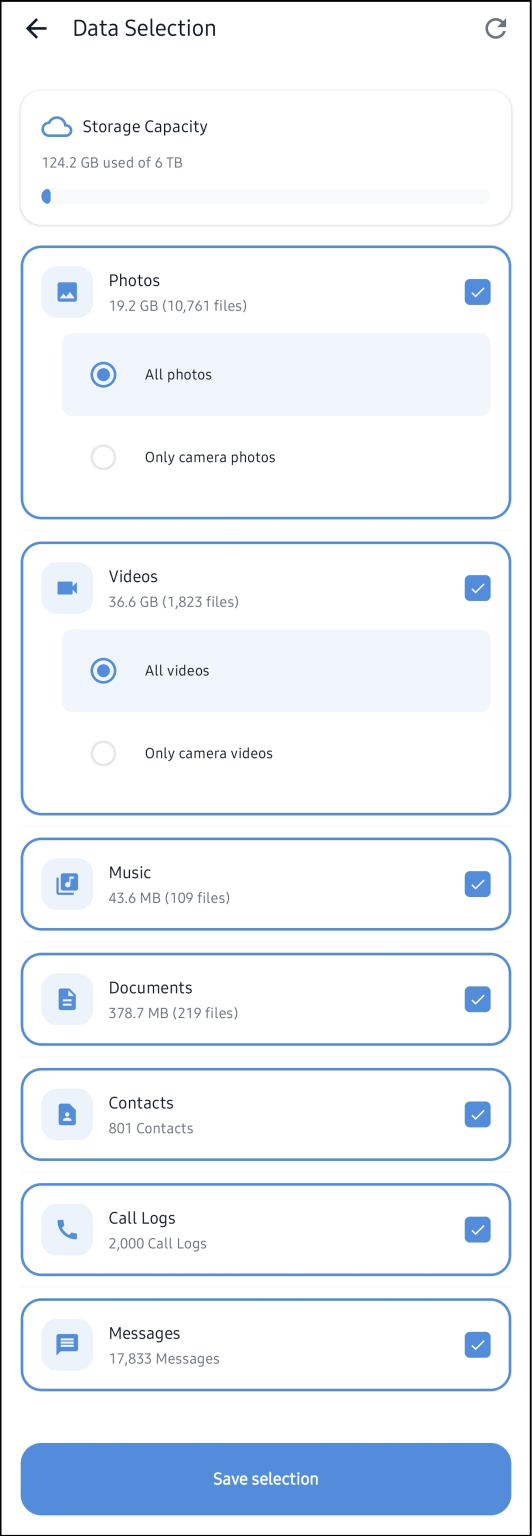
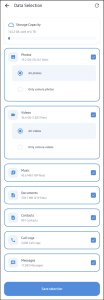
Before deleting anything, your files must exist in a secure copy. G Cloud Backup app automatically backs up personal content once configured, including:
✔ Photos and videos
✔ Contacts
✔ Music and documents
✔ Call logs and messages (supported devices)
⚙️ How to Prepare Your Phone Using G Cloud Backup
1️⃣ Install the application on an Android or iOS device.
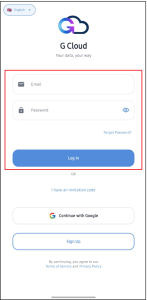
2️⃣ Create or access your account. (Learn more)
3️⃣ Select what you want to protect. (Learn more)
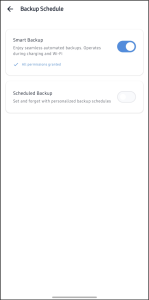
4️⃣ Choose a backup schedule (Wi-Fi only, charging, or automatic). (Learn more)
After setup, backups run automatically in the background.
🧹 Cleaning Your Phone After Backup
Once data is backed up, you can safely free device storage.
🖼️ Delete Local Photos and Videos
After confirming backup, files can be removed from the device while remaining available online. You can verify saved content anytime. (Learn more)
📂 Remove Unnecessary Files and Documents
G Cloud supports many file formats and extensions, allowing users to back up documents and media before deleting them locally. (Learn more)
🗂️ Organize and Manage Photos
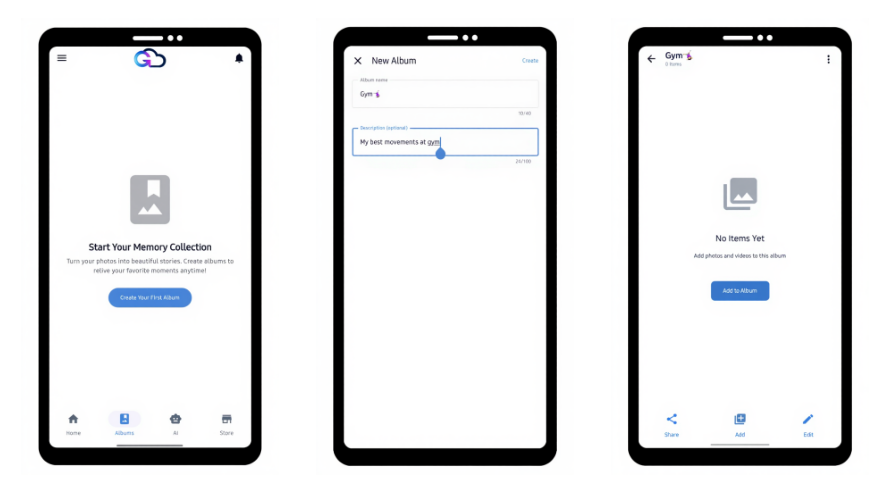
The G Cloud app allows you to manage albums and organize photos directly within the backup environment. (Learn more)
🔄 Restore Anytime on Any Device
If a phone is replaced or reset, all backed-up data can be restored by logging in and selecting the restore option. (Learn more)
☁️ Storage and Expansion
Users can upgrade storage capacity or earn additional space if needed.
🛡️ Security and Account Control
G Cloud protects user data using encrypted storage and secure authentication mechanisms. (Learn more)
Account management options include:
✔ Changing passwords. (Learn more)
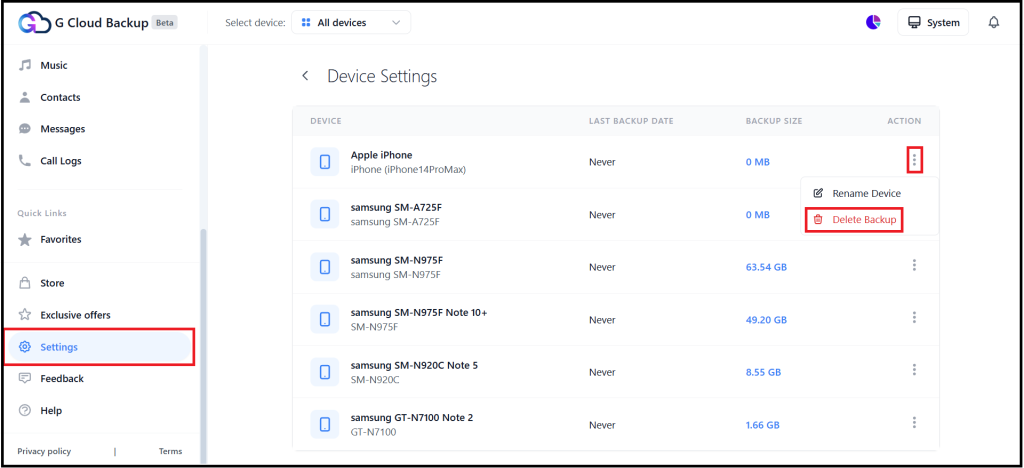
✔ Removing old devices. (Learn more)
❓ FAQ
Will deleting files from my phone remove them from G Cloud?
No. Files remain stored in the cloud unless deleted from the online backup. (Learn more)
Can I access my backup after changing phones?
Yes. Simply log in and restore your files. (Learn more)
What if I forget my password?
You can reset it securely from the login page. (Learn more)
✔️ Conclusion
A safe digital cleanup depends on backup protection. With G Cloud Backup, users can remove files from their device, recover storage space, and still maintain permanent access to their data.
Back up first. Clean confidently. Restore anytime.

