
Posts tagged Timeline
Server Platforms Now Supported by Timeline Cloud
Jul 12th
Cloud backup solutions are beginning to substitute conventional backup methods in every aspect. With increased reliability and guaranteed uptime by major cloud storage providers such as Amazon S3, it has become more convenient and more feasible to backup your business to the cloud. Servers in organizations were usually backed up regularly using tapes, with time this practice was dropped and replaced with a more modern approach such as using networked attached storage or external hard drives. However, whether you are using tapes or external media you are still vulnerable to data loss due to hardware failure, theft and catastrophes.This is where Cloud backups comes in.
Timeline Cloud is now offering support for servers and external storage with special pricing plans that cover all server types and storage space. Whatever server platform you are using, visit http://www.timelinecloud.com/Pricing to find out how you can start your server backup today.
Cloud Backup Has Become 5x Faster
Jun 23rd
When backing up to the cloud, speed is an important factor especially when backing up businesses. A backup program should implement technologies that improves it performance without using up all of a computer’s resources. This has become a challenge for us here at Genie9, to produce a cloud backup solution that can simplify the backup of anywhere from 1 to 1000s of machines and out perform the leading cloud backup programs in the market now, and this is what we achieved. In this benchmark we compare the performance of Timeline Cloud to the performance of other backup software in the market. Timeline Cloud on average is 5 times faster than any of the cloud backup providers in the market today, including Mozy, Carbonite and Crashplan. You can check the full comparison by following this link:
How to Choose a Cloud Backup Solution for Businesses
May 31st
There are MANY cloud backup solutions on the market today. It has become very difficult to know which is the right one for your needs; everyone is claiming they are the best, the easiest, the fastest, etc. After 10 years of experience in the field and hundreds of thousands of hours spent on global analytical research I have put together a list of the most important factors to consider before choosing a solution:
- In any business time is money. A key feature in a backup solution is simplicity when it comes to deployment and installation; zero hassle, zero employee intervention, zero headache. The installation should be seamless and take up little-to-no time to complete. Everything should be handled on a central, remote location on the cloud without the need to install anything on individual machines or on a complex local server.
- Configuration should be done completely in the cloud throughout the entire company; there should’nt be a need to manually configure each machine with regards to the backup settings and what data will be backed up. A solution that requires manually setting up a backup policy/job configuration should not even be a consideration.
- Why stress over using separate software to handle images of your hard disk stored on local locations when you can find a cloud backup solution that handles all of that for you? Using a cloud backup solution that supports complete DR will remove the hassle of worrying about local storage, servers, purchasing hard disks, etc.
For example: If you are away on a business trip and your Windows somehow gets corrupted you can easily repair your entire system from the cloud. With today’s high-speed internet it will only take a couple of hours to get back up and running with all of your data, applications and settings intact.
*Make sure that DR comes with “true” deduplication technology. If the Disaster Recovery is not deduped it will not be useful (Deduplication refers to backing up only one instance of a particular file throughout the world and using pointers to acknowledge who can access this file. This can be done on common files, such as Windows files to save both time and space) - A true cloud solution is mandatory! Most cloud backup solutions use proprietary storage, backing up to their own personal servers. A true cloud solution means that your data will be stored in well known, first class storage facilities that duplicate your data throughout their global network of locations. Using a proprietary storage location has a great deal of risk since they are not as secure or reliable. In 2009 Carbonite lost the data of their customers due to proprietary storage failures. True cloud locations like Amazon, Nirvanix, etc. also have a risk but their risk is much smaller and backed with a guarantee to help protect you from such instances.
- Block Level Backup, otherwise known as Delta Backup, is crucial. Block Level Backup breaks up larger files, that are changed often, into smaller pieces and only backs up pieces that have been modified. For example: Outlook stores all emails in one large .PST file, without block level backup your Cloud solution would backup this large file (around 1 GB) each time you receive an email which will tie up your business’ bandwidth and is not very practical. Block level will allow you to only back up the modified sections of the file saving both time and space.
- Security is obviously extremely important to all businesses. A backup solution is handling important data and time and effort should be made to make sure that it is secure. The key things to look out for is that the backup will be encrypted using AES-256 or higher, your backup is encrypted at the source and that you are given the ability to authorize personal encryption for key people in the company, such as the CEO.
- One of the major benefits with leveraging the cloud is the ability to access your data at all times. Your backup solution should provide the same convenience. You should be able to access your backed up data through a web interface and/or your mobile device. By access this means the ability to restore, view, share and maybe even edit.
- Speed!!! Backing up an entire computer, let alone a company, can be extremely time consuming. There are different technologies that help speed up the process; make sure the solution you choose uses these technologies. Most cloud solutions on the market are extremely slow and give little to no options when it comes to throttling the bandwidth. A backup solution that is slow negates all other fancy features that it may contain.
- Strong management consoles are often overlooked. A powerful web console can make or break a backup solution. The management section should allow you to completely control your entire company’s backup; You should be able to view reports and monitor activity, edit, add and suspend users, create/edit backup policies, control security, etc. all directly from the cloud. Many backup solutions on the market claim to have such management functionality, but at the end of the day all it does is handle the billing, which is important but not the only important thing.
- There is no point in backing up if you cannot restore. The backup solution you choose should come with a variety of restore options. Backup has come a long way from single file restore, emailing compressed files, or requesting a CD with the restored data to be shipped which can take a lot of time. In this fast paced day and age, time is of the essence, so restoring a file should be done in seconds. There should be several restore options, such as file restore, folder restore, drag and drop restore, restoring deleted files, restore from an older version, and complete Disaster Recovery restore. These options should also be available in remote locations such as from a web interface or a mobile device.
- Data is critical and losing your data can be detrimental! Make sure the backup solution you choose gives you the ability to restore your entire machine easily and quickly incase anything were to happen to your data. You should have the option to restore data to its original location and even restore Windows files if needed.
- Cost!!! As a business owner the last thing you need to worry about is another bill. Payment should be straightforward, one flat fee and without surprise charges.
- Features and bells and whistles are great but if it affects your computer’s performance it is going to slow productivity. You should not be able to feel the impact of a backup solution and it should never interrupt your work. To have different performance modes, such as battery mode or presentation mode, are key. For example: If you are presenting a PowerPoint to an important customer you should not have to feel a hang because a backup has started. The solution should intelligently notice that you are running a presentation and slow down the backup so that it goes unnoticed.
- Finally, as a business, you need something that is simple to setup, worry free, and requires little to no learning curve. A set-it-and-forget-it type of solution is ideal.
We here at Genie9 have spent years working on creating a cloud backup solution to change the way business-wide backup is done. We are proud to say that Timeline Cloud addresses all of the above requirements. Our main goal was to create a real cloud backup solution for Windows that goes above and beyond just sending a copy of your data to the cloud and referring to it as a backup. You can now try Timeline Cloud for FREE.
Thank you
-Muayyad Shehadeh
CEO
Genie9
www.Timelinecloud.com
Introducing Timeline Cloud! Real Cloud Backup Solution for Your Business and Family
May 31st
Genie9 proudly introduces our latest in backup technology Timeline Cloud.
Timeline Cloud is a real cloud backup and disaster recovery solution that combines powerful state of the art technology with the world’s most trusted and reliable service provider, Amazon S3.
Designed to have the option to be deployed to anywhere from 1 user to 1000s of users in 5 minutes through its powerful management console, Timeline Cloud is the ultimate solution for businesses looking for a feature rich, easy to manage backup solution that needs no hardware or software installation.
With flat rate billing and no surprise charges, you can backup your company no matter what the size. Flexible subscription plans allow you to choose an affordable plan for your company that will ensure 100% protection of your data.
Visit www.Timelinecloud.com/home for a free trial
A Sneak Peek into Timeline Cloud
Apr 24th
Sneak Peek into Timeline Cloud

Timeline Cloud– Revolutionary backup software: No installation needed, no hardware necessary, no network setup, low IT resources, always ready and 100% cloud based. Coming Soon: May, 2011
Mobility
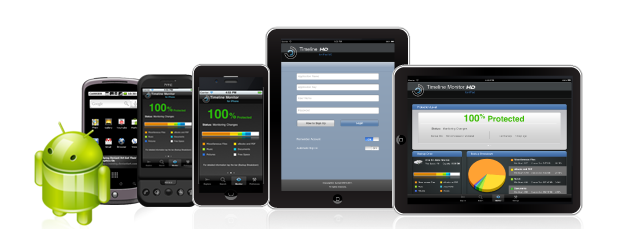
Timeline Cloud Application for iPhone/iPad/iPod, Android and Windows Smart phones:
. Search and access backed up files
. View and download encrypted files, text files, PDF files, office files, images, etc…
. View and listen to backed up music and videos within the application
. Share backed up files through email
. View all backed up machines on a single account
. Monitor your backup and stay up to date with your backup’s status and health
. View a backup breakdown chart showing details regarding your backed up files/folders
Like us on Facebook for an early trial, more sneak peeks and special offers
Mozy Drops Unlimited Backup Plans, Users Look for Less Expensive Alternatives
Feb 3rd
![]()

Online backup company Mozy has officially announced that it is dropping its popular unlimited storage plan and raising its prices for all new users and existing customers. Mozy explains that the cost of online backups has increased and therefore they had to increase the prices for the users as well, so now existing users who have already uploaded a large amount of data that exceeds the new plans limits are going to have to pay the extra charges for the rest of their plan, so needless to say people are starting to look for Mozy alternatives.
While the prices of online backup services are increasing and it has become very expensive to afford a yearly plan of online backups, if you search BestBuy or Amazon.com for the prices of an external hard drive unit that has 1 TeraByte of space (that is 1000 GB’s) you will find that a cost of a drive from even the best brands costs a lot less for something that you will only have to purchase once and can use for many years to come. Backing up your computer’s data and lifetime of photos, music, office files, financial documents, internet bookmarks and your email has become a necessity. Although storage mediums are wide spread and can easily be obtained, finding reliable backup software that combines an easy to use interface with all the backup functionality and requirements might prove hard.
Genie Timeline 2.1 is a time machine backup software for Windows that automatically and continuously backs up music files, videos, photos, documents, files and folders on your machine with little or no user intervention. With Genie Timeline, there is no need to know what to backup, where or what backup strategy to follow as it does it all for you. Just set it and forget it!
Winner of the TOPTENReviews.com best continuous data protection on the market, the idea behind Timeline is to connect it to your external hard drive or NAS and leave it to do its job.
So a cheap and reliable alternative to Mozy and all online backup utilities can be brought down to two things, an external storage device and Timeline 2.1
How to Backup
Apr 15th
You may have heard the news that our latest product Timeline 2.0 has hit the stores, and with a completely free version it is time to write out the easiest way to get your backups done.
Step 1: Get yourself an USB External Storage device
An external Hard Drive is the best form of media to create backups on, it is widely available, becoming increasingly cheap and is very durable and simple to setup. You can get any brand of external hard drives such as WesternDigital, Lacie, Seagate, Toshiba or other brands with a 1TB capacity for as low as $80.
Setting up your hard drive is easy, connect your external hard drive to the USB port, plug it in and you should be able to see it under my computer in a little while after Windows detects the new hardware and automatically recognizes it and installs it. External hard drives can also be connected through Firewire and eSATA connecters and Timeline will be able to pick them up automatically.
Step2: Setup your backup
Okay, now that you have your hard drive setup and want to begin your backup, download Timeline and install it. As soon as the program finishes the setup you will be presented with the first screen which is the “Backup Setup Wizard” click next to select your backup drive.

Timeline will automatically detect your new hard drive and you will be able to select it by pressing on it and then pressing next, Timeline also shows all the drives that you have available and recommends what drives to select. If you are using a wireless hard drive you will have to use “Select a different destination” and browse for your hard drive.

Next step is the “Select Data” page, Timeline by default will include all smart selections which include your email, documents, desktop, office files, financial files, eBooks and PDF’s, internet bookmarks, pictures, music and videos and scan for them automatically, if you feel there are a couple of these selections that you do not need in your backup press the “Customize selections button” and uncheck them.

If you are using the professional or home version of Timeline the last step includes more backup options such as compression to reduce backup size and encryption to enforce security on your files.
That’s it! You’re all set, just sit back and watch your protection level increase. If Timeline detects a large number of files it may take a while to finish the initial backup which is why it is recommended to leave your pc on overnight, Timeline senses an idle pc and goes into Turbo mode for faster backups if you use your pc again Timeline will switch back to smart mode for a faster computer.
What impact will Timeline have on my machine?
After the initial backup is done, Genie Timeline will work silently in the background and will have no impact on your computers performance. If Timeline detects there are new files or your old files have changed it will periodically back them up.
Introducing Genie Timeline 2.0
Apr 15th
Genie-soft proudly introduces our latest software Genie Timeline 2.0
Genie Timeline 2.0 comes in three different editions; Home, Professional and FREE!
Timeline 2.0 is the first backup software that has a completely Free edition which includes such features as automatically backing up your Email, documents and office files, financial files, eBooks and PDFs, Internet bookmarks and favorites, pictures, music and videos in 2 simple steps.
As for Genie Timeline Home and Professional editions, we brought the term “set it and forget it” to life; we revolutionized the backup process and took the backup software solution to a completely new level. Unlike its predecessor, we added Disaster Recovery, backup markers, multiple performance modes and much more.
Genie Timeline will take its user to the maximum level of data protection, saving both time and money, it is simply just what you need for data backup and restore.